Your Home Router Is a Front Door: How to Lock It
Learn how to secure your home router: change default logins, update firmware, use WPA3 or WPA2, set up a guest network and turn off risky features.
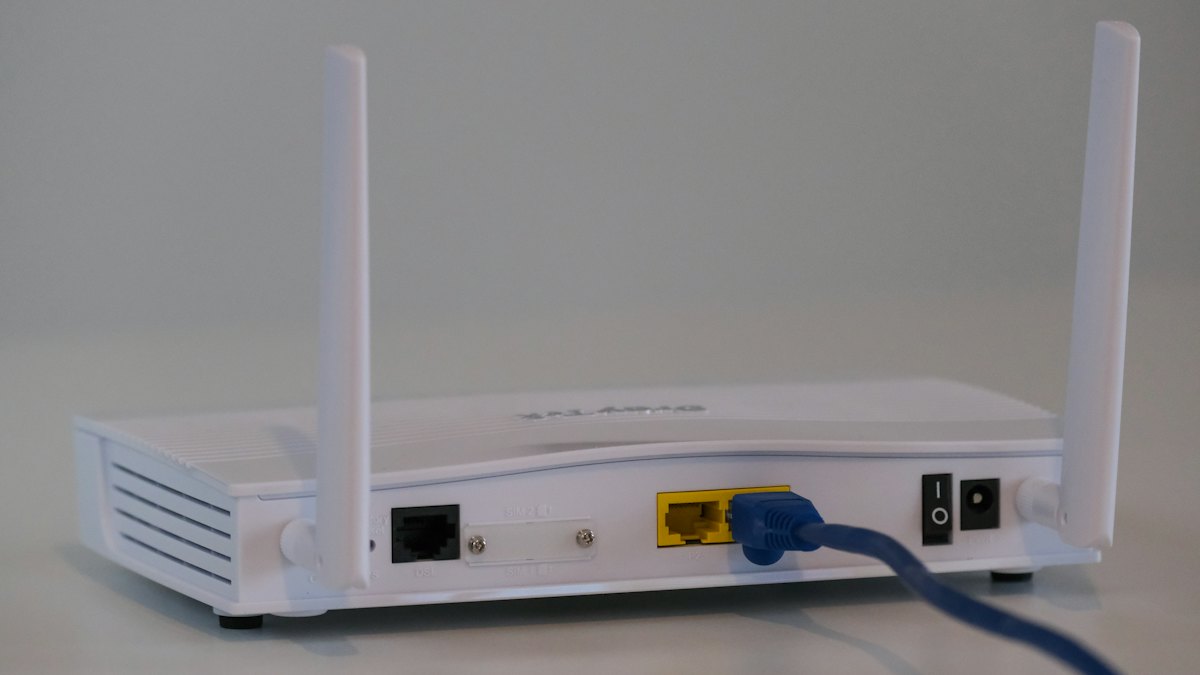
Every device in your home that connects to the internet passes through one small box: the router. Phones, laptops, TVs, cameras, game consoles and smart speakers all depend on it. If someone takes control of that box, they can watch your traffic, redirect you to fake websites or use your connection for their own purposes. Yet most people set a router up once and never look at it again.
The good news is that locking it down takes about thirty minutes and no special skills. This guide walks through the steps in order of importance.
Why routers are attractive targets
A router sits between your private network and the internet, which makes it a useful place for an attacker. Common problems include:
- Default passwords. Many routers ship with a simple admin login that is printed on a label or listed in public manuals.
- Old firmware. Routers are small computers. Like any computer, they have software bugs that get fixed in updates, but only if you install them.
- Remote access left on. Some features let you manage the router from outside your home. If they are enabled and weakly protected, anyone on the internet can try to get in.
- Weak Wi-Fi settings. Old encryption types or short, guessable Wi-Fi passwords make it easy for a neighbor, or someone parked outside, to join.
Step 1: Open the admin page
You manage a router through a web page that only works from inside your network. The address is usually printed on the router label, often something like 192.168.0.1 or 192.168.1.1, or a short name such as the manufacturer's setup address. Type it into a browser while connected to your Wi-Fi or by cable, then sign in with the admin details from the label or the manual.
Some routers are managed through a phone app instead. The same steps apply, only the menus look different.
Step 2: Change the admin login
There are two separate passwords on a router, and people often mix them up:
- The Wi-Fi password is what your devices use to connect.
- The admin password is what lets someone change the router settings.
Change the admin password first. Make it long and unique, and store it in a password manager. If the router lets you change the admin username too, do that as well. A default username with a custom password is good; a custom pair is better.
Step 3: Update the firmware
Firmware is the router's operating software. Look for a section named Firmware, Software Update or Administration. Many modern routers can check for updates and install them automatically, so turn automatic updates on if you see the option.
If your router no longer receives updates from the manufacturer, that is a real security problem. Routers that have reached end of support keep any known weaknesses forever. In that case, replacing the router is the safest fix. The manufacturer's support page usually states whether a model is still supported.
Step 4: Secure the Wi-Fi itself
Choose the right encryption
In the wireless settings you will see a security mode. Here is how the common options compare:
| Mode | Status | What to do |
|---|---|---|
| WPA3 | Newest and strongest | Use it if all your devices support it |
| WPA2 (AES) | Still widely used and acceptable | Good choice, or use WPA2/WPA3 mixed mode for older devices |
| WPA | Outdated | Avoid |
| WEP | Broken for many years | Never use |
| Open (no password) | No protection | Never use on your main network |
Pick a strong Wi-Fi password
A passphrase made of several unrelated words is easier to type on a TV remote than a jumble of symbols and still very hard to guess. Aim for a long one, and avoid anything connected to your name, address or phone number.
Rename the network
The network name (SSID) does not need to be secret, but avoid including your family name or address. A name that reveals the router brand or model can also give attackers a hint about which weaknesses to try.
Step 5: Turn off features you do not use
Every enabled feature is one more thing that can be attacked. Review these settings:
- Remote management or remote administration. Turn it off unless you truly need it.
- WPS (Wi-Fi Protected Setup). The push-button or PIN pairing method has known design weaknesses. Disable it.
- UPnP. It lets devices open ports automatically. It is convenient for some games but can be abused by malware. Turn it off unless something stops working.
- Port forwarding rules. Delete any you do not recognize or no longer need.
- Guest or ISP management features you never use.
Step 6: Create a guest network
Most routers can broadcast a second network just for visitors. Devices on it can reach the internet but not your computers, printers or file shares. It is also a smart home for devices you trust less, such as cheap smart plugs, cameras and TVs. Give the guest network its own password, and share that one rather than your main password.
Step 7: Check who is connected
The router admin page usually lists connected devices. Go through the list once. You should recognize each entry, even if names look technical. If you see something unknown, change your Wi-Fi password, which will disconnect everything so you can reconnect only your own devices.
A quick checklist
- Change the admin password and, if possible, the username.
- Install the latest firmware and enable automatic updates.
- Use WPA3 or WPA2 with a long Wi-Fi passphrase.
- Disable remote management, WPS and UPnP.
- Set up a guest network for visitors and smart devices.
- Review the device list and port forwarding rules.
- Write down the router login in your password manager.
What if you think the router is compromised?
Warning signs include unexplained redirects to strange pages, DNS settings you did not change, an admin password that suddenly stops working, or settings that change by themselves. In that case:
- Disconnect the router from the internet by unplugging the cable that comes from your provider.
- Perform a factory reset using the small reset button, usually held for around ten seconds.
- Update the firmware before reconnecting if you can, then set everything up again with new passwords.
- Change important passwords from a device you trust, and contact your internet provider if the problem returns.
Frequently asked questions
Is the router my provider gave me secure enough?
Often it is reasonable, and many providers update their routers automatically. You should still change the default passwords and check the settings above.
How often should I check the router settings?
A review every few months is plenty, plus a quick look whenever you add a lot of new devices.
Should I hide my network name?
Hiding the SSID adds little real protection and can make connecting devices harder. Strong encryption and a good password matter far more.
Conclusion
Your router guards everything else you own online, so a little attention here pays off. Change the default logins, keep the firmware current, use modern Wi-Fi encryption and switch off the features you do not need. Once these basics are done, you rarely have to touch the settings again, and your front door will be much harder to open.