Passkeys Explained: Could They Replace Passwords?
Passkeys let you sign in with a fingerprint, face scan or device PIN, not a password. See how they work, why they resist phishing and how to start using them.
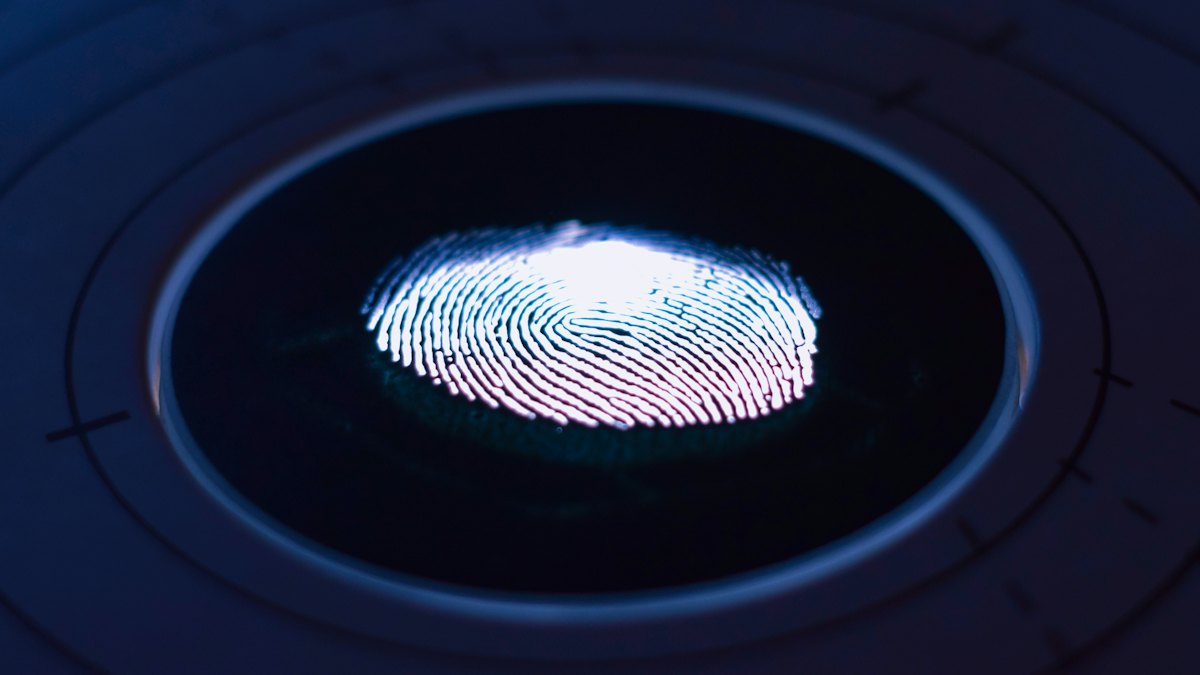
Passwords have been the default way to prove who you are online for decades, and they are a mess. People reuse them, forget them, type them into fake websites and have them leaked in data breaches. Passkeys are a newer sign-in method designed to fix those problems. Instead of a secret you type, you approve the sign-in with something you already do to unlock your device, like a fingerprint, a face scan or a PIN. This article explains what passkeys are, how they work and whether you should switch.
What is a passkey?
A passkey is a digital credential stored on your device that lets you sign in to a website or app without typing a password. When you create one, your device generates a pair of linked cryptographic keys. The website keeps the public key, which is not secret. Your device keeps the private key, which never leaves it and is never shared with the site.
When you sign in, the website sends a challenge. Your device unlocks the private key with your fingerprint, face or screen-lock PIN and uses it to sign the challenge. The site checks the signature using the public key. At no point is a reusable secret sent over the internet, so there is nothing for an attacker to intercept or for a breached database to leak in a useful form.
In plain terms: a password is a secret you share with every site. A passkey is a secret your device keeps to itself, and it only proves it knows the secret each time you sign in.
Why passkeys are safer than passwords
- Resistant to phishing. A passkey is tied to the real website address it was created for. If you land on a lookalike page, your device will not offer the passkey, so there is nothing to hand over.
- Nothing to steal from the server. Sites store only public keys. A leaked database does not give attackers anything they can use to sign in.
- No reuse. Each passkey is unique to one account, so one breach cannot unlock others.
- No guessing. There is no weak, predictable password to crack.
- Built-in second factor. Signing in usually requires both your device and your biometric or PIN, which combines two checks in one step.
Passwords versus passkeys
| Question | Password | Passkey |
|---|---|---|
| What do you provide? | A secret you remember and type | A fingerprint, face scan or device PIN |
| Can it be phished? | Yes, if you type it into a fake site | Designed to resist it |
| Can it be reused? | Yes, and often is | No, one per account |
| What if the site is breached? | Stored hashes can be attacked | Only public keys are exposed |
| Needs memorizing? | Yes, or a manager | No |
| Works on every site? | Yes | Only where supported |
Where passkeys are stored and how they sync
Passkeys live in a secure area of your device or in a credential manager. Many platforms can sync them across your devices through an encrypted account, so a passkey made on your phone can be available on your tablet or laptop. Some password managers also store passkeys, which can help if you use devices from different makers.
You can also use a passkey from one device to sign in on another. For example, a sign-in page on a computer may show a QR code that you scan with your phone to approve the login. The phone does the verification, and the computer never receives your private key. Some people use a physical security key to hold passkeys, which is a stricter option.
How to start using passkeys
- Make sure your device is protected. Set a strong screen lock, since it guards your passkeys. Keep your system updated.
- Look in your account security settings. Search for "passkey" or "sign in with a passkey" on the sites you use most, such as email, shopping and social accounts.
- Create the passkey. Follow the prompts, and approve with your fingerprint, face or PIN.
- Test it. Sign out, then sign in using the passkey to confirm it works.
- Keep a backup way in. Do not delete your recovery options until you are confident. Know how to regain access if you lose a device.
- Expand gradually. Add passkeys to more accounts over time, starting with the most important ones, like your main email.
Limitations to be aware of
- Not everywhere yet. Many services still require passwords, so for the moment you will likely use both.
- Account recovery matters. If all your devices are lost and nothing is synced or backed up, you will depend on a recovery process, which varies by service.
- Ecosystem differences. Moving passkeys between different platforms is getting easier but can still be awkward.
- Shared devices. On a computer many people use, be careful about saving passkeys, and sign out when finished.
- Your device lock is critical. Anyone who can unlock your device with your PIN may be able to use your passkeys, so keep that PIN private.
Frequently asked questions
Is my fingerprint sent to the website?
No. Your biometric data is used locally to unlock the private key on your device. The website never receives your fingerprint or face data.
What happens if I lose my phone?
If your passkeys sync through an account, you can usually restore them on a new device after signing in to that account. Without sync, you would use the recovery options of each service, so keep those up to date.
Do I still need a password manager?
For now, yes. Many sites do not support passkeys, and a manager keeps those remaining passwords unique and strong. Some managers can store passkeys too.
Are passkeys the same as two-factor authentication?
Not exactly. A passkey can replace the password and also includes a device check plus biometric or PIN verification, so it often covers what two factors do. Some sites may still ask for extra verification in certain situations.
Conclusion
Passkeys are a practical step forward: they are easier to use than passwords and much harder to phish, guess or steal. They will probably not replace passwords overnight, because support is still growing, but you can benefit now. Turn them on for your most important accounts, keep your recovery options current, and continue to use a password manager for everything else until passkeys become the norm.