Public Wi-Fi: What Can Go Wrong and How to Protect Yourself
Public Wi-Fi is convenient but risky. Learn the real threats, the habits that matter, and the settings to change so you can connect safely anywhere.
Free Wi-Fi in cafés, airports, hotels and libraries is hard to resist, but you share that network with strangers and you have no idea how well it is managed. The good news is that modern devices and websites are much safer than they used to be. A few sensible habits cover most of the remaining risk. Here is what actually matters.
Why public Wi-Fi is riskier than home Wi-Fi
On your home network you control the router, the password and who connects. On a public network you control none of that. The main risks are:
- Snooping: on an open network with no password, traffic that is not otherwise encrypted can be observed by others nearby.
- Fake hotspots: an attacker can create a network with a believable name such as the cafe's name plus "Guest" and wait for people to join. This is sometimes called an evil twin.
- Man-in-the-middle attacks: someone on the same network tries to sit between you and the website, altering or capturing what passes through.
- Other devices on the network: if your device shares files or services openly, other users may be able to reach them.
It is worth keeping this in proportion. Most websites now use HTTPS, which encrypts the connection between your browser and the site, so an eavesdropper on the Wi-Fi generally cannot read your passwords or messages. The risk is higher when something is misconfigured, when you ignore a browser warning, or when you connect to a malicious network in the first place.
Before you connect
- Confirm the network name. Ask staff for the exact name of the official network rather than picking the first one that looks right.
- Turn off automatic joining. Disable "auto-connect" or "ask to join networks" so your phone and laptop do not silently join a lookalike hotspot.
- Prefer a password-protected network. A network with a password and modern encryption is generally better than a completely open one, though a shared password does not make it fully private.
- Forget networks you no longer use. Old saved networks can be impersonated.
- Update your devices. Install operating system and browser updates before you travel, not on the hotspot.
Settings to check on your device
- Set the network profile to Public on Windows, which makes your computer less visible to others.
- Turn off file and printer sharing and AirDrop-style sharing for "everyone" while away from home.
- Keep the firewall switched on. It is built into Windows and macOS.
- Turn off Bluetooth and Wi-Fi when you are not using them. It also saves battery.
Safe habits while you are connected
What you do on the network matters more than almost any setting.
- Look for HTTPS. The padlock or secure indicator in the address bar tells you the connection to the site is encrypted. If your browser shows a certificate warning, stop and do not click through.
- Avoid sensitive tasks when you can. Online banking, tax forms and anything involving government identification are better done on your mobile data connection or at home.
- Be wary of captive portals. The login page that appears when you join is normal, but it should not ask for card details, your email password or an app download. Treat requests for those as a red flag.
- Do not install software or browser extensions from a prompt that appears while on the network.
- Use a password manager. It fills in credentials only on the correct domain, which helps against fake login pages.
- Log out when you finish, especially on shared or borrowed computers, and never save passwords in a public machine's browser.
Where a VPN fits in
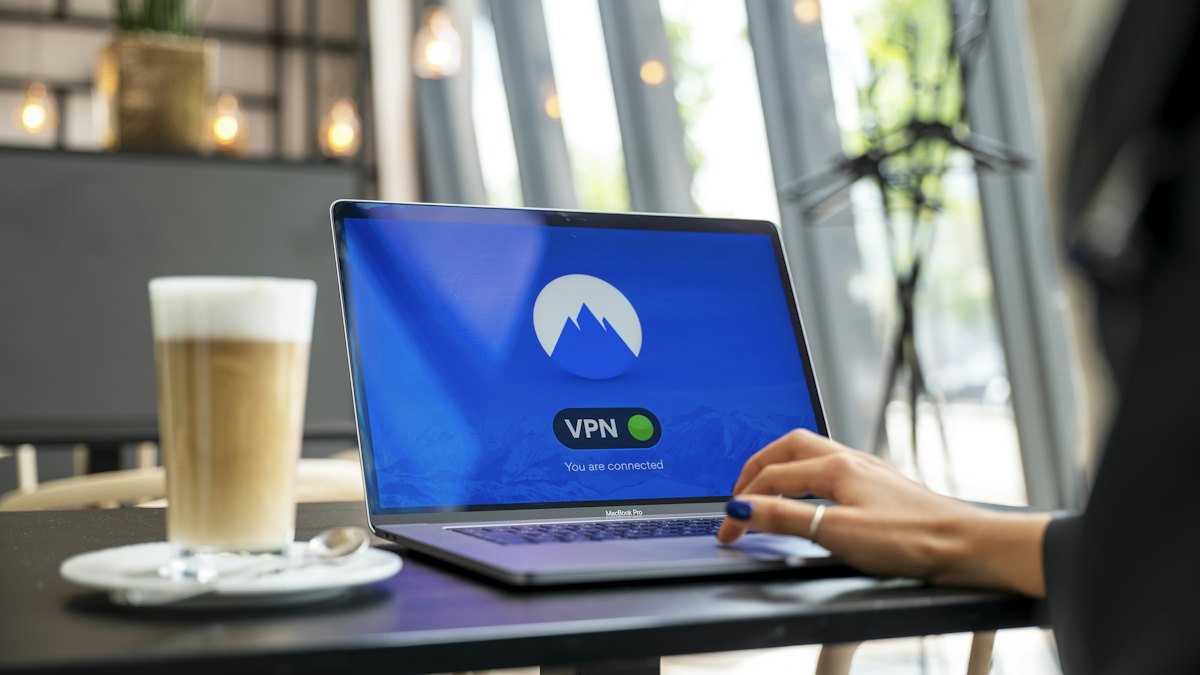
A VPN encrypts all traffic between your device and the VPN server, so people on the local network cannot see what you are doing even on sites or apps that do not use HTTPS. That makes it a sensible extra layer on public Wi-Fi. It is not a cure-all. It does not protect you from phishing, malware or a fake login page you type your password into. Whoever runs the VPN can still see your traffic, so use a provider with a trustworthy track record rather than an unknown free app.
Quick reference table
| Situation | What to do |
|---|---|
| Casual browsing and reading news | Stick to HTTPS sites and keep your device updated |
| Checking email or social media | Use the official app or HTTPS site, enable two-factor authentication, consider a VPN |
| Banking or payments | Prefer mobile data or wait until you are on a trusted network |
| Working with company data | Use your employer's VPN and follow its policy |
| Using a shared computer | Use a private window, never save passwords, and log out fully |
Protect your accounts in advance
Some of the best protection happens before you travel. Turn on two-factor authentication for your email, banking and main social accounts, so a stolen password alone is not enough to get in. Use unique passwords for each account, stored in a password manager. If something does go wrong on a public network, these steps limit the damage.
What to do if you think you were compromised
- Disconnect from the network and switch to mobile data or a trusted connection.
- Change the passwords for any accounts you used, starting with email, from a device you trust.
- Sign out of all active sessions in your account security settings.
- Check recent activity for unfamiliar logins or transactions, and contact your bank if anything looks wrong.
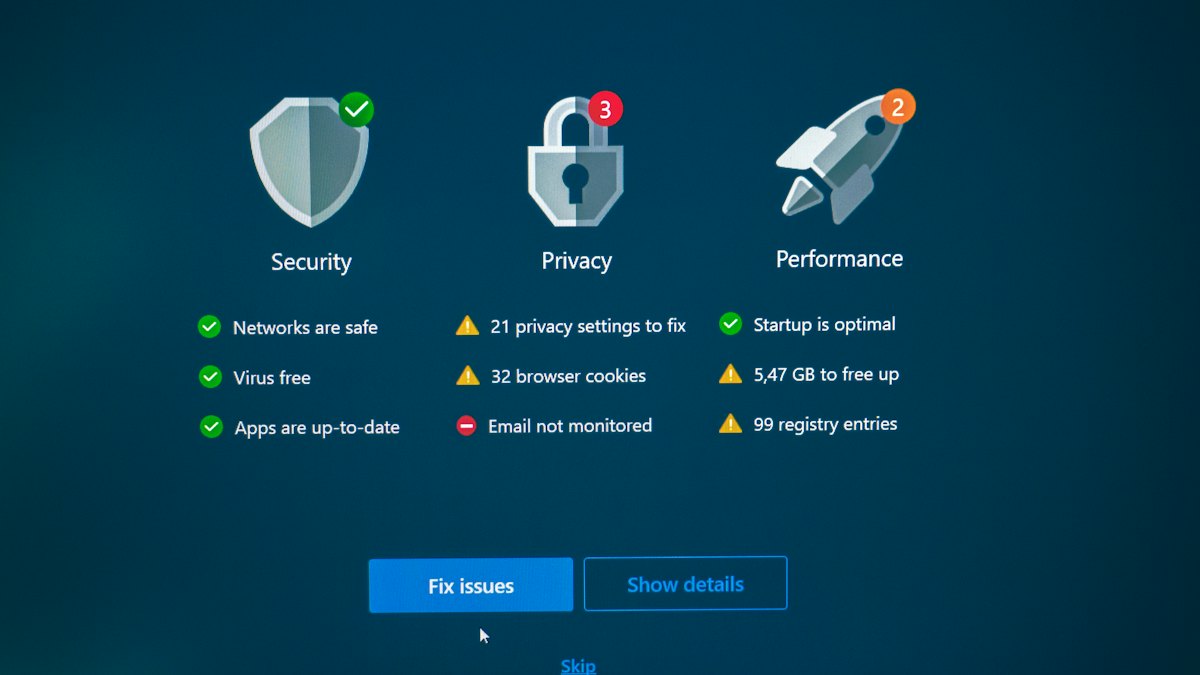
- Run a security scan on your device if you installed anything during the session.
Final thoughts
Public Wi-Fi is not as dangerous as it is often made out to be, but it is not something to use carelessly either. Connect only to networks you have verified, keep your device updated, rely on HTTPS, protect your accounts with two-factor authentication, and save sensitive tasks for a safer connection. Add a trustworthy VPN if you want an extra layer, and you can enjoy free Wi-Fi with confidence.